

Show where to click
Place a visible cue on the action the viewer should take next.
WalkthroughsClick hotspots
Make the next click easy to spot.
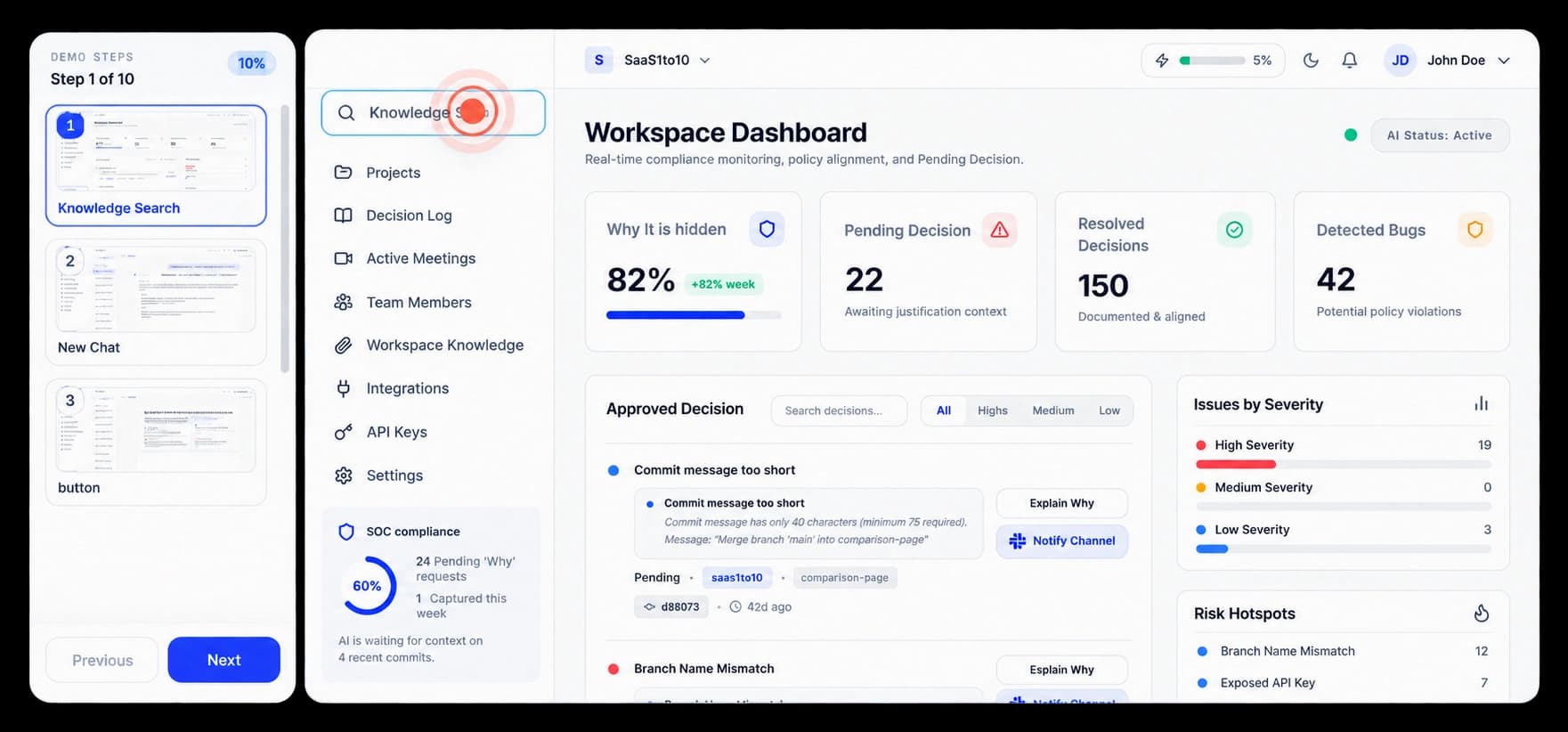
Guide the next click
A hotspot marks the control a viewer should use next. The cue sits on the captured screen, keeping the product visible while the walkthrough moves forward.
Place a visible cue on the action the viewer should take next.
The target stays on its captured screen while the cue draws attention.
Review how the hotspot reads before sharing the walkthrough.
On the captured screen
Use a restrained pulse to bring attention to one target. Keep the rest of the screen visible and check the result before sharing the walkthrough.
Inside the workflow
Choose the action that needs attention, place its hotspot, and check the cue in the captured screen.
Open the captured screen that contains the next action.
Place the cue over the control the viewer should use.
Make sure the target stands out without hiding nearby context.
Product video
Record the control, the change it makes, and the result on screen.
pulsing-click-hotspots.mp4Where it helps
Use a clear visual cue when the next control is easy to miss.
Product onboarding
Support walkthroughs
Sales demos
A few useful details
It appears on the selected control in the captured screen for that walkthrough step.
Yes. Preview the step to make sure the cue points clearly to the action.
The hotspot provides a visual cue. Add or edit a guide when the action needs written context too.

Build interactive walkthroughs, personalize prospect links, and export 60 FPS motion videos without writing code or waiting on engineering.