

Select the target
Choose the exact control or area the walkthrough step should explain.
Chrome CaptureElement capture
Select the part of the screen your viewer needs to understand.
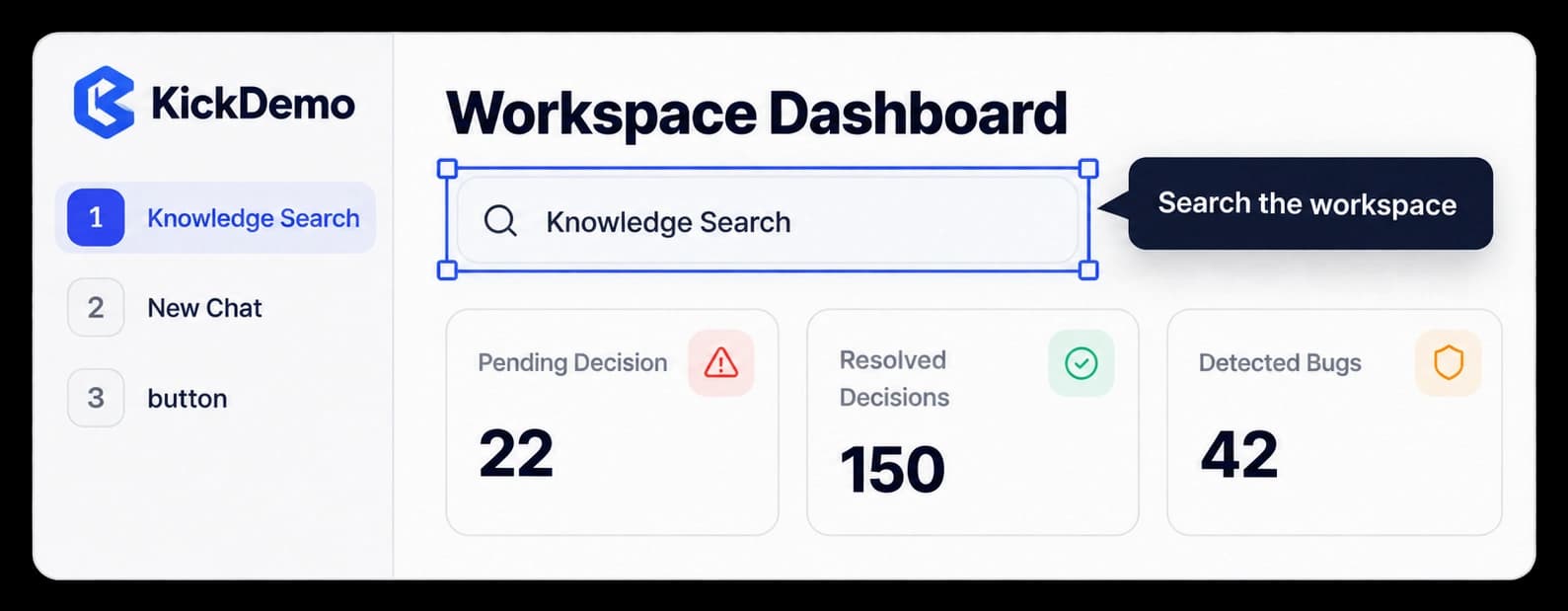
Keep every guide tied to its target
Select an element in a captured screen and add a guide for that part of the product. The target stays in context while you set the guide’s position and review the result.
Choose the exact control or area the walkthrough step should explain.
Choose where the guide sits in relation to the selected element.
Check the target and its guide together on the captured screen.
In the walkthrough
Keep attention on one part of the product at a time. Set the guide above, below, left, or right of its target, then check that the screen still reads naturally.
Inside the workflow
The editor keeps the captured screen, selected target, and guide together as you prepare a step.
Choose the walkthrough step where the control appears.
Pick the interface area that should receive attention.
Choose its position and check how it reads beside the target.
Product video
Record the control, the change it makes, and the result on screen.
smart-element-capture.mp4Where it helps
Keep a customer focused on the control or setting they need to understand.
Product onboarding
Support guides
Sales walkthroughs
A few useful details
Select the interface area you want a walkthrough step to call out, such as a field, button, or navigation item.
Yes. Set its position around the selected element and review the result with the screen still in view.
It helps you attach a guide to the right part of a captured screen. You can then refine the wording and the rest of the walkthrough in the editor.

Build interactive walkthroughs, personalize prospect links, and export 60 FPS motion videos without writing code or waiting on engineering.