

Keep controls readable
Show the field, menu, or button the step is talking about.
Chrome CaptureScreen capture
Keep captured screens clear enough to follow.
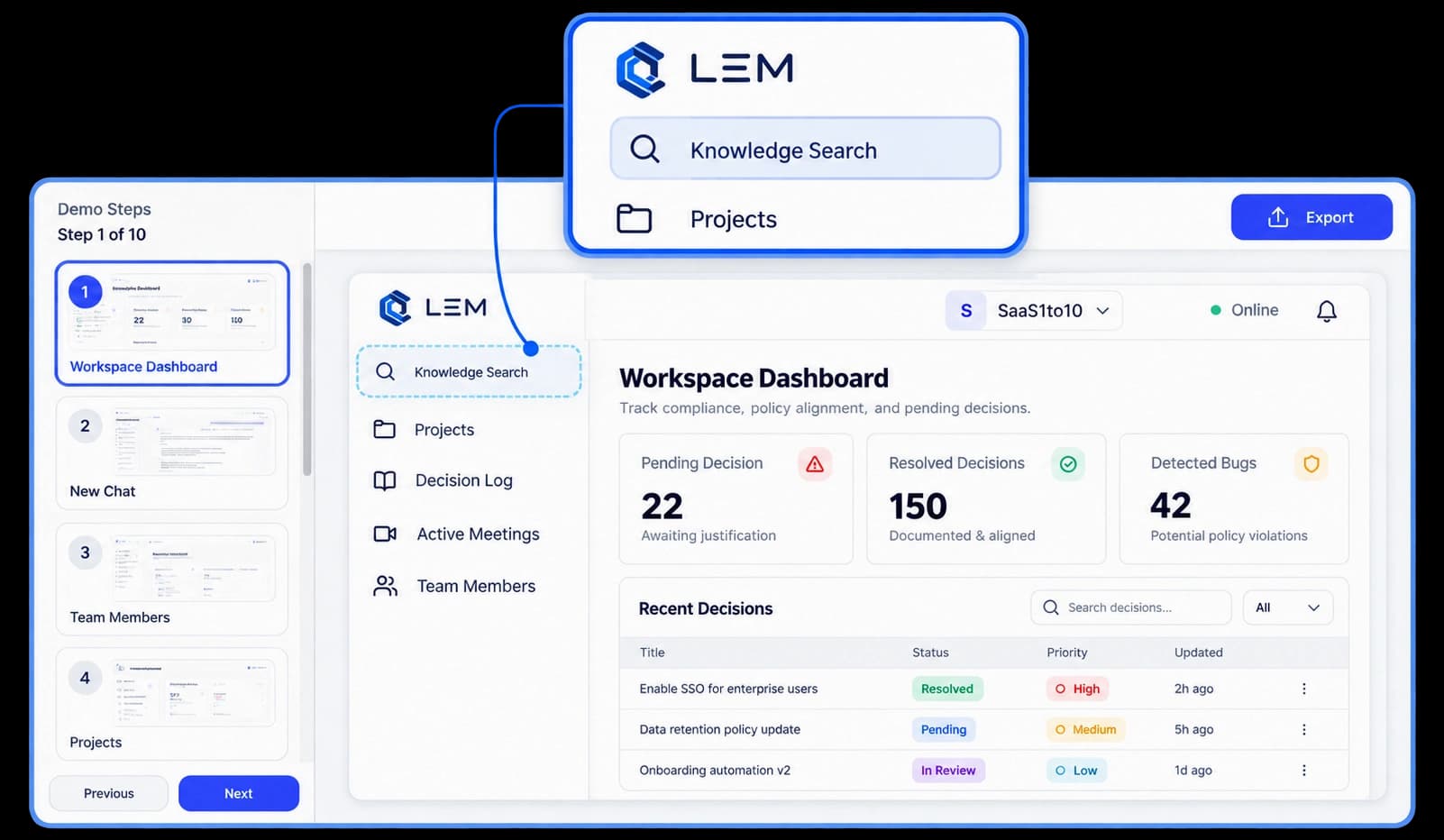
Clarity at every step
A walkthrough is only useful when viewers can make out the screen. KickDemo keeps each captured screen alongside its step, so the controls and context remain visible while people follow the path.
Show the field, menu, or button the step is talking about.
Keep the surrounding interface visible so the action makes sense.
Check the captured screen beside its step while you refine the walkthrough.
Read the screen clearly
A clear captured screen helps viewers connect each instruction with the part of the product it describes. Keep the screen and its step together as you review the walkthrough.
Inside the workflow
Capture the screen at the point you want to explain, check the details, and keep it with the right step.
Record the part of the workflow you want to explain.
Check that the relevant controls are easy to see.
Review the screen in context as you prepare the walkthrough.
Product video
Record the control, the change it makes, and the result on screen.
pixel-perfect-hd-snapshots.mp4Where it helps
Clear screens help people understand what they are seeing and what to do next.
Product onboarding
Support documentation
Product updates
A few useful details
Each captured screen stays with its walkthrough step in the editor, ready for you to review.
Yes. Open the walkthrough, check the screen beside its step, and make any edits before sharing.
No. The walkthrough shows captured screens from the flow you record; it does not change the product itself.
Build interactive walkthroughs, personalize prospect links, and export 60 FPS motion videos without writing code or waiting on engineering.