

Select what to hide
Mark the private detail on the captured screen.
WalkthroughsPrivacy blur
Hide sensitive details before you share a demo.
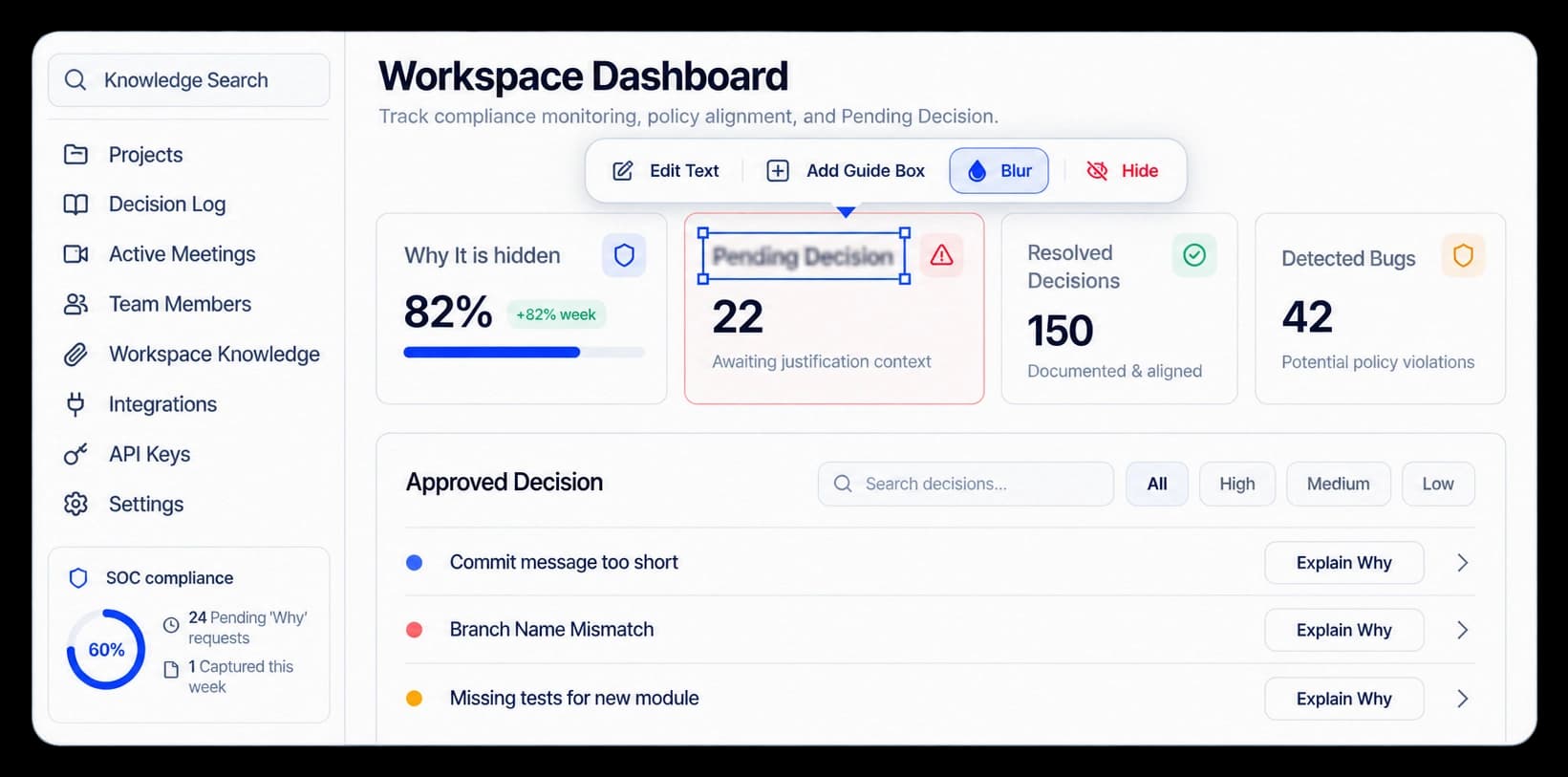
Keep private details out of view
Use the Blur control to conceal a selected area of a captured screen. The surrounding interface stays visible, so viewers can still follow the product flow.
Mark the private detail on the captured screen.
Leave useful interface context visible around the blur.
Check the selected area in context before sharing.
In the editor
Select the part of the screen that should not appear in the walkthrough, then inspect the result at full size before sharing it.
Inside the workflow
Choose the area, apply Blur, and review the full captured screen before it goes to viewers.
Find the step that contains the detail to conceal.
Select the area that should be hidden from viewers.
Check the mask and nearby content before sharing the walkthrough.
Product video
Record the control, the change it makes, and the result on screen.
smart-privacy-blur.mp4Where it helps
Prepare a walkthrough that explains the product without exposing private account details.
Customer education
Product marketing
Support teams
A few useful details
Use Blur on an area of a captured screen that should not be visible in the walkthrough.
Yes. The blur is applied to the selected area, leaving the surrounding product context in view.
Yes. Inspect the captured screen and its selected area before sharing the walkthrough.

Build interactive walkthroughs, personalize prospect links, and export 60 FPS motion videos without writing code or waiting on engineering.