

See the sequence
Review captured screens together in the Demo Steps rail.
WalkthroughsStep editor
Review captured screens and shape the walkthrough order.
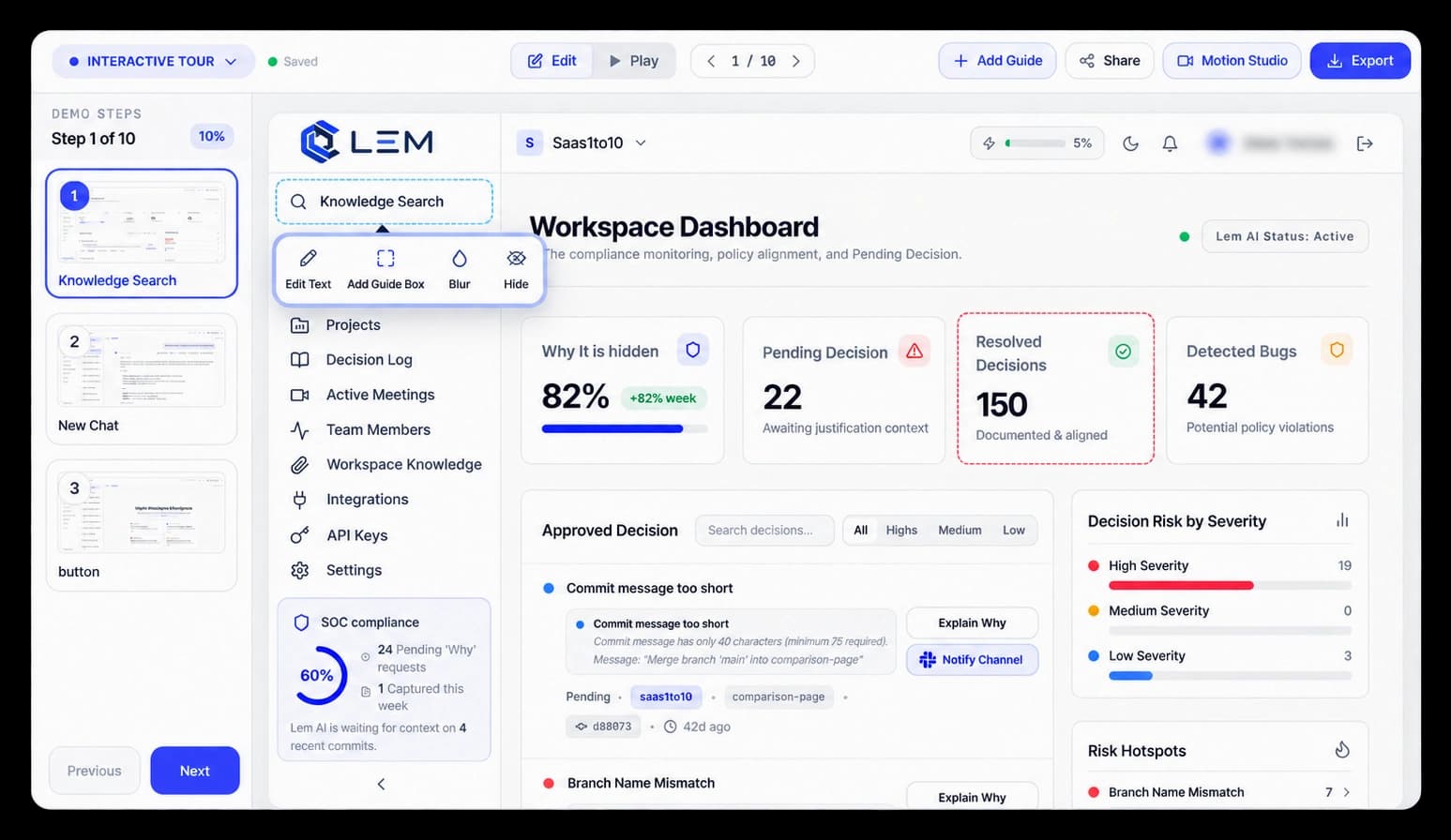
Keep the walkthrough easy to follow
The Demo Steps rail shows the screens in a walkthrough’s current sequence. Open a step, review it beside the captured interface, and refine the story before it is shared.
Review captured screens together in the Demo Steps rail.
Keep the selected step connected to the screen it explains.
Check the path and its screens before sharing the walkthrough.
In the editor
Move through the Demo Steps rail to review the captured path. Keep the action, screen, and guide aligned while you decide what the viewer should see next.
Inside the workflow
Review the current sequence, check the screens, and prepare the path for its audience.
See the captured screens in their current order.
Open the steps that need a closer look or content edit.
Check that the sequence tells a clear product story.
Product video
Record the control, the change it makes, and the result on screen.
visual-step-editor.mp4Where it helps
Use the step rail to keep a product explanation clear from the first screen to the last.
Product teams
Sales teams
Support teams
A few useful details
It shows captured screens in their current walkthrough sequence.
Yes. Open a step to inspect its captured screen and the content attached to it.
Review it after capture and before sharing, so the path is clear for its audience.

Build interactive walkthroughs, personalize prospect links, and export 60 FPS motion videos without writing code or waiting on engineering.