

Shape the arc
Adjust the selected branch’s curvature from its inspector.
Motion StudioPath controls
Adjust a connector’s curve until the path fits the scene.
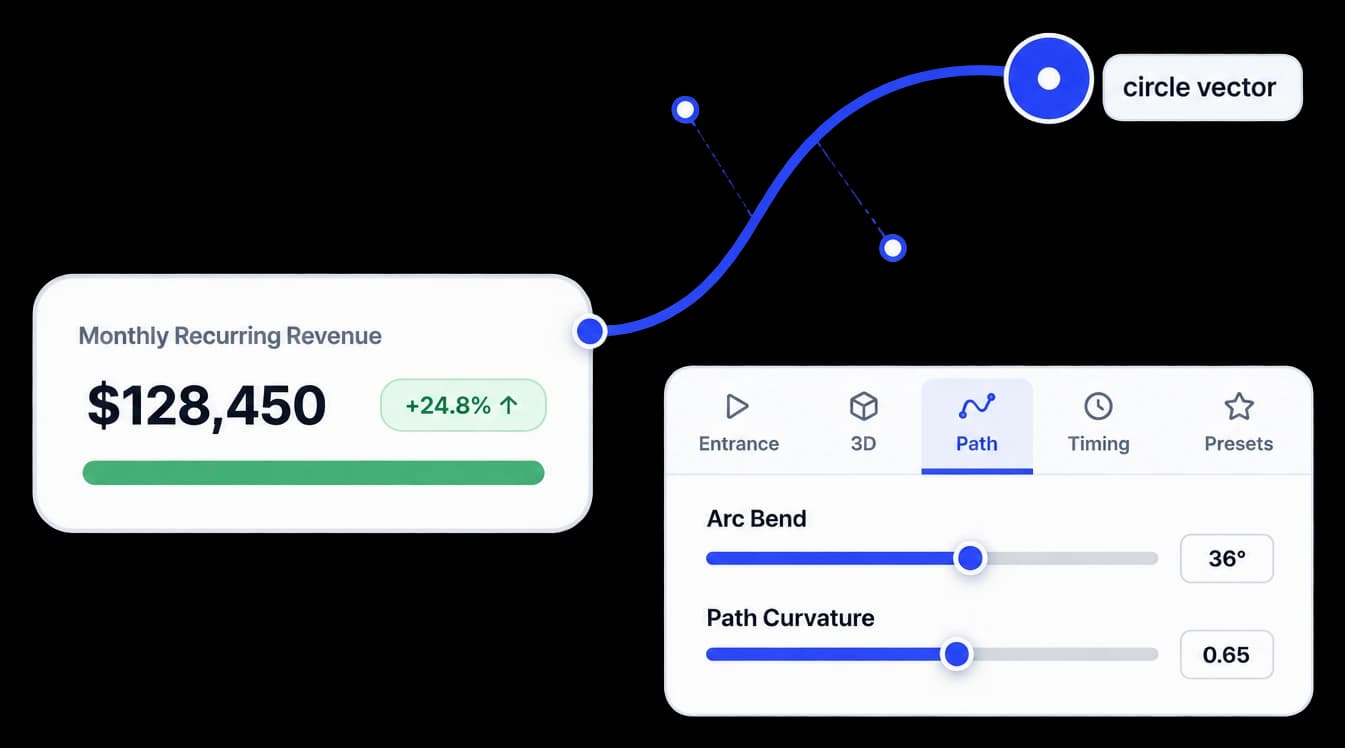
Shape the route on canvas
Adjust the curve of a connector to fit the space between objects. The selected path and its destinations stay visible while you refine the bend.
Adjust the selected branch’s curvature from its inspector.
Review the connector against the surrounding canvas elements.
Tune a branch’s bend without changing the rest of the scene.
In Motion Studio
The inspector exposes Path Curvature / Arc Bend for a selected branch. Adjust the value or its canvas control point, then check how the line sits around nearby objects.
Inside the workflow
Select the path, refine its curvature, and review it beside the objects it joins.
Choose the connector whose path needs more or less bend.
Move the Path Curvature / Arc Bend control or drag its canvas point.
Check the adjusted route against the nearby elements and preview it.
Product video
Record the control, the change it makes, and the result on screen.
custom-curve-controls.mp4Where it helps
A deliberate curve keeps connections legible when a straight route would crowd the scene.
Product marketing
Sales teams
Customer education
A few useful details
Select the branch and adjust Path Curvature / Arc Bend in the inspector.
Yes. Each branch target can have its own curvature setting.
Yes. Review the line on the canvas and play the scene to check the result.

Build interactive walkthroughs, personalize prospect links, and export 60 FPS motion videos without writing code or waiting on engineering.