

Reveal the path
Draw a connector after its destination nodes appear.
Motion StudioConnector reveal
Reveal a connected path as each destination comes into view.
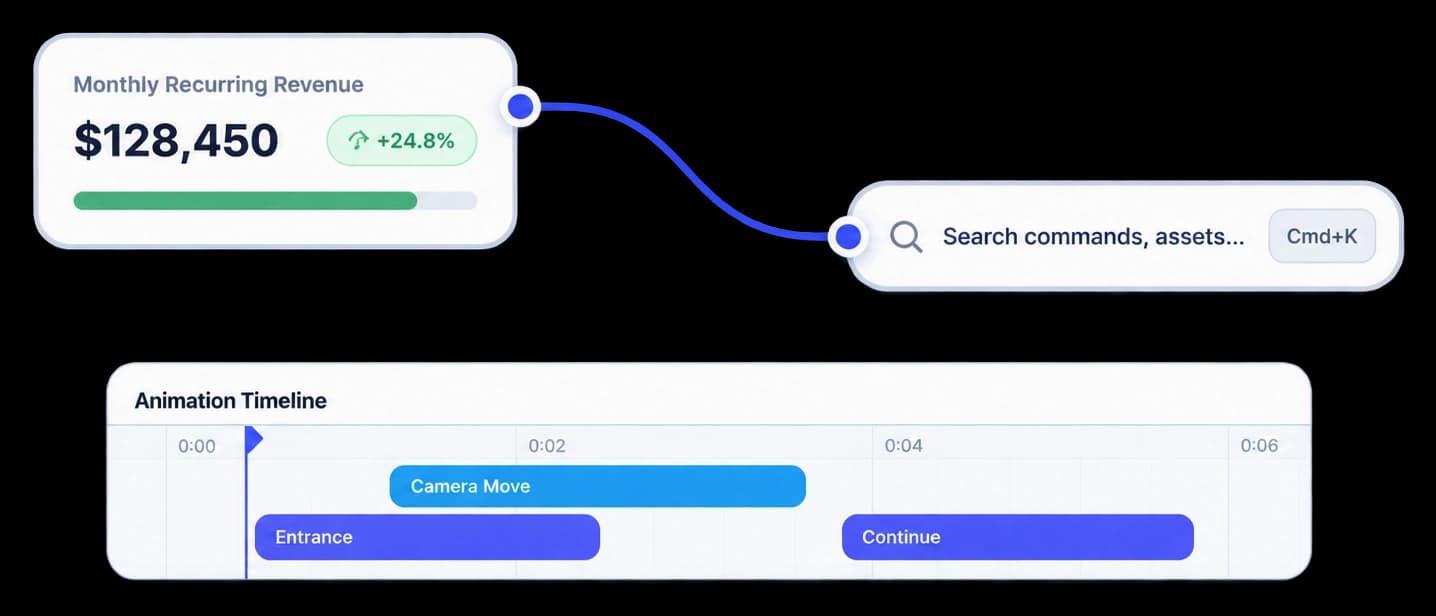
Show how the pieces connect
Motion Studio can reveal nodes before the connector draws between them, or bring the nodes and paths in together. The order makes a connected workflow easier to follow.
Draw a connector after its destination nodes appear.
Make the start and destination clear as the line is revealed.
Check how the connector joins the scene before export.
In Motion Studio
Set whether nodes appear first or arrive with the connector. Preview the reveal to see how a path links its starting point to each destination.
Inside the workflow
Place the objects, choose their reveal order, and preview how the connection reads in the finished scene.
Arrange the cards or visual elements that make up the path.
Set whether the nodes appear first or the nodes and connector arrive together.
Play the scene and check that the route is easy to follow.
Product video
Record the control, the change it makes, and the result on screen.
dynamic-flow-connectors.mp4Where it helps
A drawn connector helps viewers understand which objects belong to a connected flow.
Product marketing
Sales teams
Customer education
A few useful details
Motion Studio supports showing the nodes first and then drawing the connector, or showing the nodes while the connector draws.
Yes. Play the scene in Motion Studio to review the order and timing.
Connectors can link visual elements in a route. The canvas lets you review how the connections read together.

Build interactive walkthroughs, personalize prospect links, and export 60 FPS motion videos without writing code or waiting on engineering.